

 See My Latest Article on HelloNation
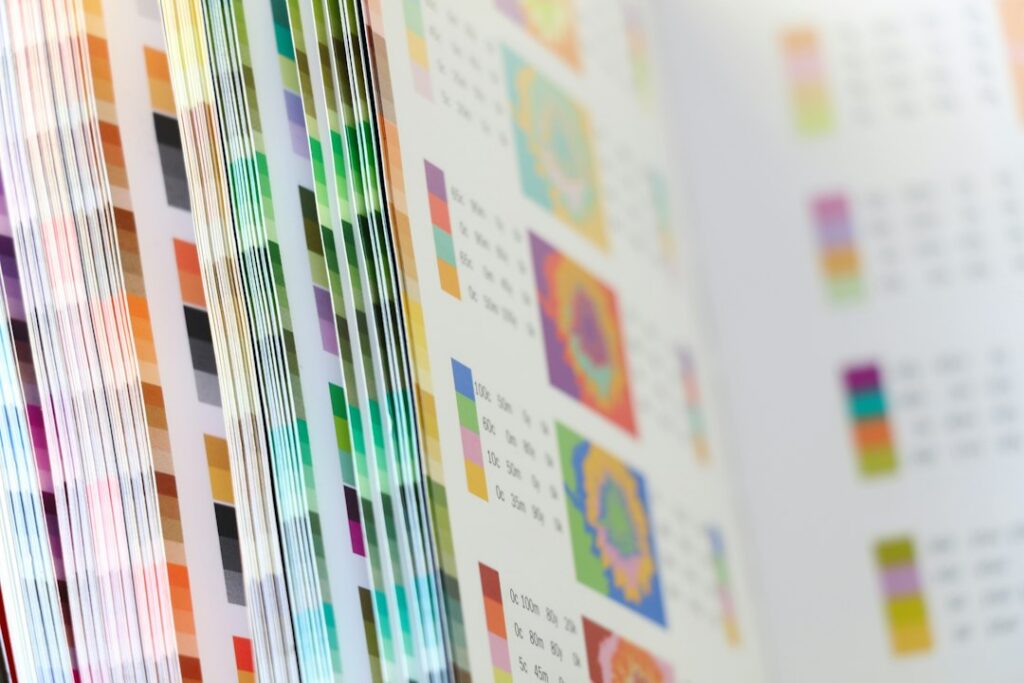
Accurate art reproduction depends on more than a high-resolution camera or a good printer. The monitor, camera, editing software, printer, ink, and paper each interpret color differently. ICC profiles help these devices communicate so that a carefully edited image produces a print that more closely matches the artist’s original work.
For artists, photographers, galleries, collectors, and households in Ruston, LA, understanding ICC profiles can reduce wasted paper, unexpected color shifts, and confusion about why an image looks different on screen than it does in print.
What is an ICC profile?
An ICC profile is a standardized description of how a device or material reproduces color. It tells color-management software how a particular monitor, camera, printer, ink set, or paper handles color.
The profile does not improve an image by itself. Instead, it provides information that allows software to translate color more predictably from one stage of the workflow to another.
For example, a printer profile may describe:
- The colors a printer can reproduce
- How a specific ink set behaves
- How ink interacts with a particular paper surface
- How much ink should be placed in different areas
- How neutral grays and dark tones are likely to appear
A profile made for glossy paper should not automatically be used for a cotton rag, matte, or heavily textured fine art paper. The surface changes how light reflects and how ink absorbs, so the same file may produce different results.
Why does a print look different from the monitor?
Screens produce light, while paper reflects light. This fundamental difference explains many apparent color problems.
A bright monitor can display luminous blues, greens, and reds that some printers cannot reproduce with pigment or dye inks. A screen can also show deep shadows through emitted light, while a print depends on the room’s illumination and the paper’s reflective properties.
Other common causes include:
- A monitor that is too bright
- Incorrect display calibration
- Different white points between devices
- A wider color space in the image file than the printer can reproduce
- Viewing the print under warm household lighting
- Using the wrong printer-and-paper profile
- A paper surface that changes contrast and saturation
An ICC-managed workflow does not make the screen and print identical in every condition. It makes the translation between them more controlled and predictable.
How does color management work?
Color management uses profiles to translate color values between devices. A typical fine art workflow may involve several stages:
1. A camera records the artwork or scene.
2. Editing software interprets the image using a working color space.
3. A calibrated monitor displays a preview.
4. A printer profile describes the selected printer, ink, and paper combination.
5. Printing software converts the image into instructions that the printer can use.
The conversion is not simply a matter of replacing one numerical red, green, or blue value with another. The software considers the color capabilities of each device and determines how to preserve the appearance as closely as possible.
This process is often called a color-managed workflow. It is most reliable when every major component is understood and correctly identified.
What is soft proofing?
Soft proofing is a screen preview that estimates how an image may appear when printed using a particular printer profile and paper profile.
It can reveal colors that fall outside the printer’s reproducible range, especially highly saturated colors and very dark tones. In editing software, these areas may be shown with a warning or may appear less vivid in the proof preview.
Soft proofing is useful because it allows adjustments before paper and ink are consumed. An artist may decide to:
- Reduce saturation in a small color range
- Open up blocked shadows
- Adjust contrast for a matte surface
- Preserve detail in highlights
- Modify a background color that shifts noticeably during printing
A soft proof is still an approximation. It depends on the monitor, viewing conditions, calibration, and the accuracy of the printer profile. A physical test print remains valuable for important work.
Why do paper profiles matter so much?
Paper is an active part of the color system, not just a passive surface. Glossy paper often produces stronger contrast and more saturated color, while matte or textured paper may create softer contrast and a more subdued appearance.
Fine art papers can also have a warm or cool base tone. A warm paper may influence whites, pale grays, skin tones, and delicate highlights. Optical brighteners, coating, texture, and absorbency can all affect the final appearance.
Using the correct profile means matching all of the following:
- Printer model
- Ink formulation
- Paper type and surface
- Printing mode or quality setting
- Driver settings
- Color-management method
A profile for the wrong paper may produce prints that look too dark, too flat, overly saturated, or noticeably shifted toward a particular hue.
Should the printer or software manage color?
Only one part of the workflow should perform the primary color conversion. If both the editing software and the printer driver attempt to manage color, the image may be converted twice. This can create muddy shadows, unnatural saturation, or a strong color cast.
There are two common approaches:
- The editing or printing software manages color, while printer-driver color adjustments are disabled.
- The printer driver manages color, while software-based color conversion is disabled.
Either approach can work when configured correctly. The problem usually occurs when both systems are active or when neither system is using the intended profile.
The exact setting names vary by operating system and printer software, so checking the documentation for the particular equipment is more reliable than copying generic settings from another workflow.

Does monitor calibration affect art reproduction?
Yes. A monitor that is too bright can make a print appear disappointingly dark even when the printer is functioning correctly. A display with an inaccurate white balance can also lead to unnecessary editing changes.
Calibration establishes a more consistent reference for brightness, white point, contrast, and color response. For critical reproduction, the monitor should be allowed to warm up before calibration and should be viewed in stable ambient light.
Local homes and studios may experience changing daylight, seasonal humidity, and mixed indoor lighting. These conditions do not directly change an ICC profile, but they can change how a print is perceived. Comparing a print beside a bright window, under warm lamps, and on a glowing screen may produce three different impressions.
For serious evaluation, use consistent, neutral lighting and allow prints to dry and stabilize before making final judgments.
What are common ICC profile mistakes?
Several errors appear repeatedly in home and studio printing:
- Choosing a generic profile instead of the profile for the actual paper
- Selecting the wrong paper surface in the printer driver
- Letting both software and the printer manage color
- Editing on an uncalibrated or excessively bright monitor
- Converting repeatedly between color spaces
- Assuming a screen preview guarantees an identical print
- Ignoring the paper’s natural white point
- Judging a print before the ink has fully dried
- Using a profile intended for a different ink or printer combination
Another common misconception is that converting an image to a printer profile permanently makes it “ready for every printer.” A printer profile is specific to a particular equipment, ink, and media combination. A file prepared for one setup may not be appropriate for another.
How can a careful test print reduce waste?
A test print should include more than a single favorite image. A useful test sheet contains skin tones, neutral grays, saturated colors, deep shadows, fine texture, and small highlight details.
Print a reduced section or a representative portion at the intended quality setting. Then evaluate it under consistent lighting after the surface has dried. Compare it with the original artwork or reference image, but avoid judging only by the brightness of a monitor.
Keep notes about:
- Paper name and surface
- Printer settings
- Profile used
- Rendering intent
- Date of the test
- Any manual adjustments
- Lighting conditions during evaluation
This record is especially helpful when reproducing a series of artworks or photographs over time. It also helps distinguish a color-management problem from a paper, lighting, or display issue.
Which rendering intent is appropriate?
Rendering intent determines how colors outside the printer’s range are handled. The two settings most often considered for art reproduction are perceptual and relative colorimetric.
Perceptual intent may adjust a broader range of colors so that relationships remain visually balanced. It can be useful when many colors fall outside the printer’s capabilities.
Relative colorimetric intent generally preserves in-gamut colors accurately while remapping out-of-gamut colors. It may work well for images with important neutral tones or limited areas of intense color.
Neither setting is universally correct. The better choice depends on the image, paper surface, and desired visual result. Comparing small proof prints is often more informative than relying on a general rule.
Why accurate reproduction requires judgment, not just settings
ICC profiles provide a technical foundation, but reproduction remains partly interpretive. An artist may prefer a print that is slightly warmer, softer, or less saturated than the original because that appearance suits the chosen paper.
The goal is not always numerical sameness. The goal may be to preserve the visual character, texture, contrast, and emotional effect of the original under realistic viewing conditions.
For residents working in home studios, galleries, or collection spaces, consistent lighting, careful monitor calibration, correct paper profiles, and disciplined test printing usually matter more than constantly changing settings. A reliable color-managed process turns printing from guesswork into a repeatable craft.